







How to Set Up a Robots.txt File and Improve Search Engine Crawling
If you manage a website, the robots.txt file is one of the most powerful yet underutilized tools at your disposal. This simple text file instructs search engine bots on which pages or sections of your site they should—or shouldn’t—crawl. Properly configuring your robots.txt file ensures that search engines spend their limited crawl budget on your most valuable content, which can directly impact your indexing, rankings, and overall site performance. Whether you’re running a small business website or implementing large-scale Enterprise SEO services, an optimized robots.txt file plays a crucial role in helping search engines efficiently discover and prioritize important content. In this guide, we’ll walk through exactly how to set up a robots.txt file, common pitfalls to avoid, and advanced strategies to fine-tune crawling for better SEO results.
What Is a Robots.txt File and Why Does It Matter?
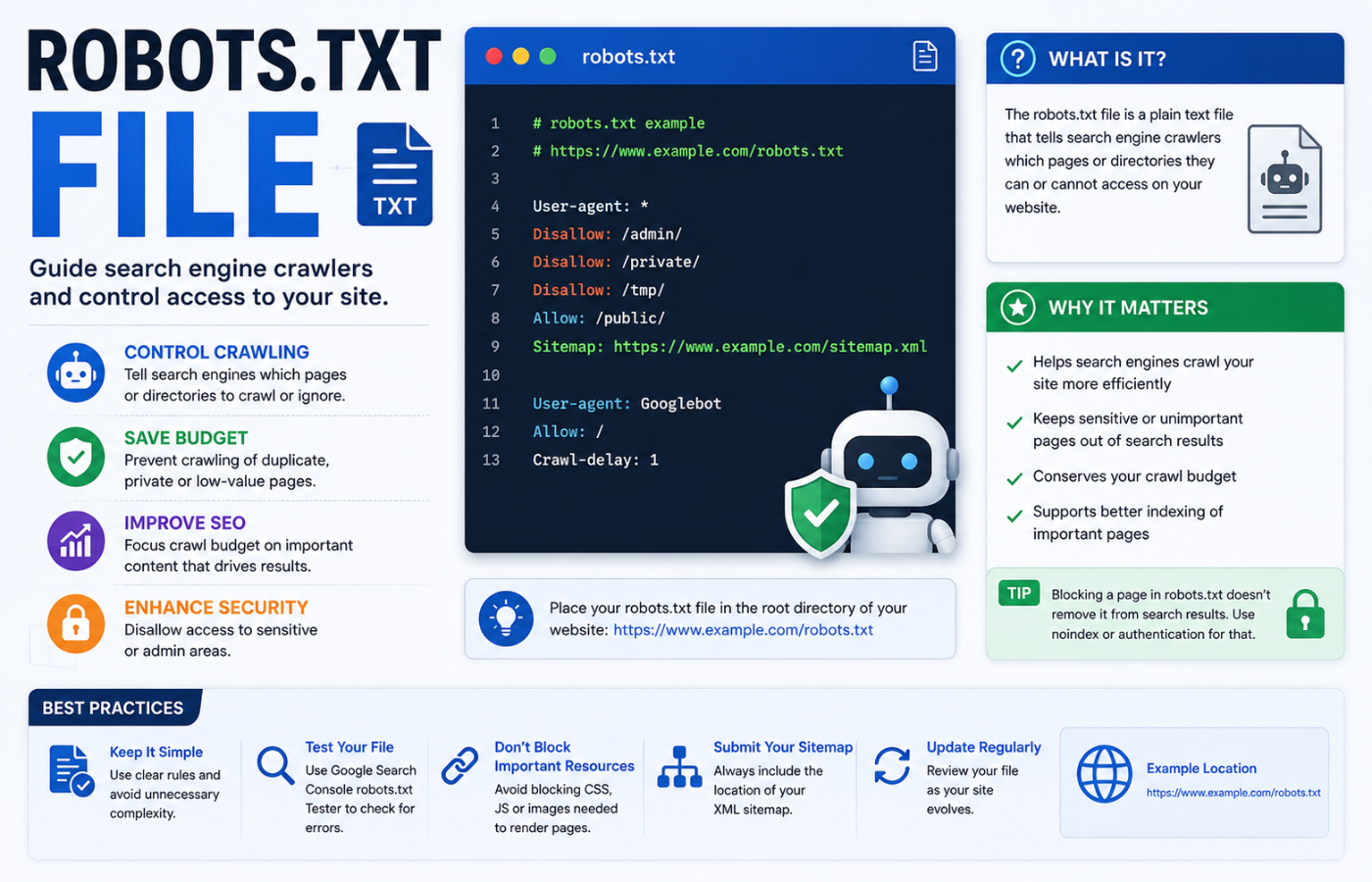
Before diving into setup, let’s clarify the purpose. A robots.txt file is a plain text document placed in your website’s root directory (e.g., https://yourdomain.com/robots.txt). It follows the Robots Exclusion Protocol and gives directives to web crawlers like Googlebot, Bingbot, and others. While it doesn’t force bots to obey (some malicious crawlers ignore it), all major search engines respect its rules.
Why is this important? Without a robots.txt file, crawlers might waste resources on:
-
Duplicate content (e.g., print-friendly versions, session IDs)
-
Admin or login pages
-
Internal search result pages
-
Large media files or archives that offer little SEO value
By blocking or allowing specific paths, you guide crawlers toward your priority pages—product listings, blog posts, landing pages—which improves crawl efficiency and can boost your visibility in search results.
Step-by-Step: How to Set Up a Robots.txt File
Step 1: Create the File
Open any plain text editor (Notepad, Sublime Text, VS Code) and save a new file as robots.txt. There are no special extensions—just robots.txt exactly.
Step 2: Understand the Basic Syntax
A robots.txt file uses two main directives:
-
User-agent: Specifies which crawler the rule applies to (e.g.,
User-agent: GooglebotorUser-agent: *for all bots). -
Disallow: Tells the crawler which paths to block. A forward slash (
/) blocks the entire site, while a specific path like/admin/blocks only that folder. -
Allow: (Optional) Overrides a Disallow rule for a subpath. This is useful when you want to block a parent folder but allow a specific file inside it.
-
Sitemap: (Optional) Points search engines to your XML sitemap location.
Here’s a basic example:
User-agent: *
Disallow: /private/
Disallow: /tmp/
Allow: /public/

Sitemap: https://yourdomain.com/sitemap.xml
This tells all crawlers to avoid the /private/ and /tmp/ folders but allows crawling of /public/. It also announces the sitemap location.
Step 3: Identify What to Block (and What Not to)
Not everything needs blocking. Start by auditing your site:
-
Block: Duplicate content (e.g.,
/print/versions), staging environments (/staging/), admin panels (/wp-admin/for WordPress), and dynamic filters that create endless URLs (e.g.,?sort=price). -
Allow: Your main content—blog posts, category pages, product pages, and anything you want indexed.
-
Never block: CSS, JavaScript, and image files that are essential for rendering (unless you use other methods like
noindex). Blocking these can hurt Google’s ability to render your page correctly.
Step 4: Upload the File to Your Root Directory
Using FTP, cPanel File Manager, or your hosting provider’s interface, upload robots.txt to the root folder—the same directory where your homepage’s index.html or index.php resides. For example:
-
Correct:
https://yourdomain.com/robots.txt -
Incorrect:
https://yourdomain.com/subfolder/robots.txt
Step 5: Test and Validate
Before you finalize, test your file using:
-
Google Search Console: Go to “Crawl” > “robots.txt Tester” to see if Googlebot interprets your rules correctly.
-
Bing Webmaster Tools: Similar tester available.
-
Third-party validators: Tools like SEObility’s Robots.txt Checker.
Pay attention to wildcards (* for matching any sequence, $ for matching the end of a URL) but use them sparingly—they can produce unexpected blocks if you’re not careful.
Common Mistakes to Avoid with Your Robots.txt File
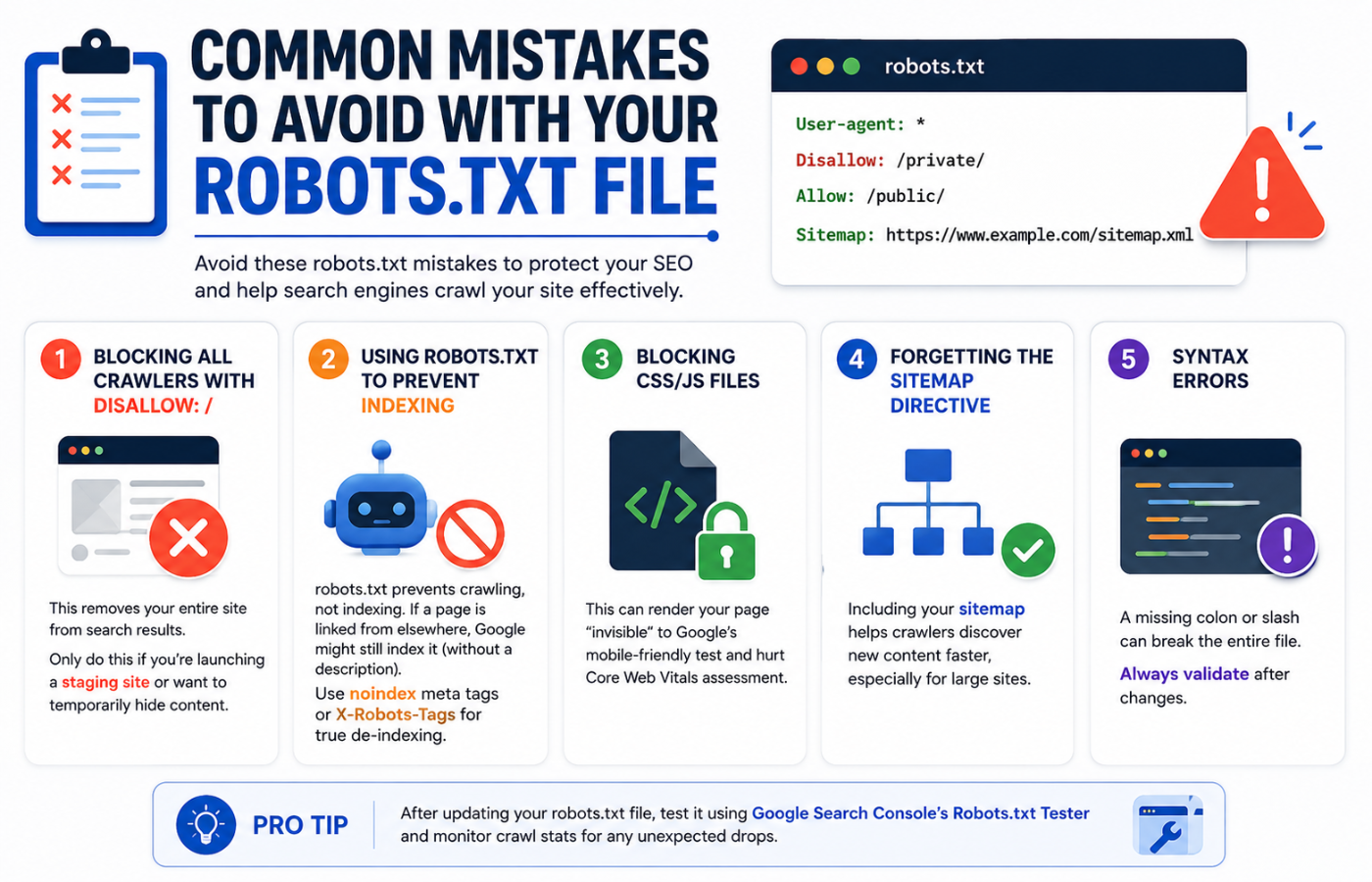
Even experienced webmasters can trip up. Here are frequent errors:
-
Blocking all crawlers with
Disallow: /– This removes your entire site from search results. Only do this if you’re launching a staging site or want to temporarily hide content. -
Using robots.txt to prevent indexing – Remember, robots.txt prevents crawling, not indexing. If a page is linked from elsewhere, Google might still index it (without a description). Use
noindexmeta tags or X-Robots-Tags for true de-indexing. -
Blocking CSS/JS files – This can render your page “invisible” to Google’s mobile-friendly test and hurt Core Web Vitals assessment.
-
Forgetting the Sitemap directive – Including your sitemap helps crawlers discover new content faster, especially for large sites.
-
Syntax errors – A missing colon or slash can break the entire file. Always validate after changes.
Advanced Strategies to Optimize Crawling
Once your basic robots.txt file is live, consider these tactics for even better crawl management:
Use Crawl-Delay (for non-Google bots)
Google doesn’t support Crawl-delay, but Bing and Yandex do. Adding Crawl-delay: 5 (seconds) can prevent your server from being overwhelmed by aggressive bots.
Leverage the Allow Directive for Nested Exceptions
Example: Block /shop/ but allow /shop/categories/:
User-agent: *
Disallow: /shop/
Allow: /shop/categories/
Order matters—Google processes rules in the order they appear, with the most specific rule winning.
Combine with noindex for Complete Control
For sensitive pages (e.g., user profiles, checkout), use a noindex meta tag in addition to robots.txt blocking. This ensures that even if a page is discovered via a backlink, it won’t appear in results.
Monitor Crawl Stats in Google Search Console
After deploying your robots.txt file, watch the “Crawl Stats” report. A healthy drop in crawled low-value pages and a steady or rising crawl of important pages indicates success. If you see a sudden drop in total crawl volume, you may have accidentally blocked critical content.
Robots.txt vs. Other SEO Directives
It’s essential to understand where robots.txt fits among other instructions:
| Directive | Purpose | Best For |
|---|---|---|
| robots.txt | Controls crawling (what bots can access) | Blocking duplicate, thin, or admin content |
Meta robots noindex |
Prevents indexing (page won’t appear in SERPs) | Pages you never want shown, even if crawled |
| Canonical tags | Consolidates duplicate content signals | When you have multiple URLs with similar content |
| XML Sitemap | Tells crawlers about your priority pages | Helping bots discover new or deep content |
In practice, you might use all three: robots.txt to save crawl budget, noindex to keep pages out of results, and sitemaps to highlight your best pages.
Real-World Example: A Complete Robots.txt File
Here’s a robust template for a typical e-commerce or blog site:
# Allow all major crawlers
User-agent: *

# Block admin and system folders
Disallow: /admin/
Disallow: /wp-admin/
Disallow: /cgi-bin/
Disallow: /tmp/
Disallow: /logs/

# Block duplicate content paths
Disallow: /*?sort=
Disallow: /*?filter=
Disallow: /print/

# But allow product images and CSS (for rendering)
Allow: /wp-content/uploads/
Allow: /assets/css/
Allow: /assets/js/

# Set crawl delay for less critical bots
User-agent: bingbot
Crawl-delay: 10

# Specify sitemap location
Sitemap: https://yourdomain.com/sitemap_index.xml
How Often Should You Update Your Robots.txt File?
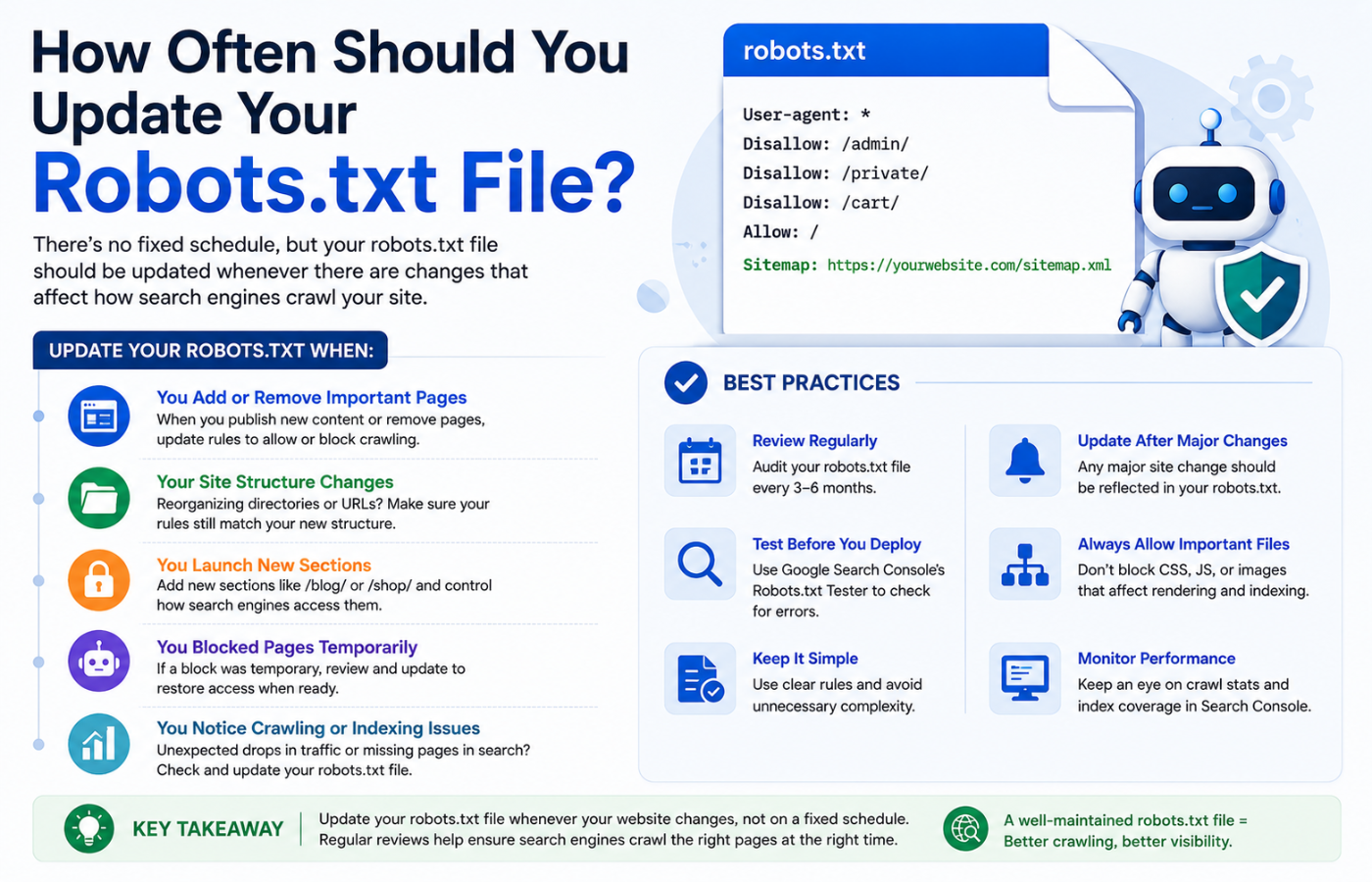
Your robots.txt file isn’t a “set and forget” asset. Review it:
-
After a site redesign (new URL structures may need new rules).
-
When you add or remove large sections of content.
-
If you notice crawl budget issues (e.g., Google crawls too many low-value pages).
-
Whenever search engines release new guidelines (e.g., Google’s shift to mobile-first indexing).
A quarterly audit is a good habit. Use Google Search Console’s “Coverage” report to see if any important pages are accidentally blocked.
Final Thoughts: Small File, Big Impact
The robots.txt file might be just a few lines of text, but its influence on search engine crawling is profound. A well-configured file ensures that Googlebot and other crawlers focus on your revenue-generating or authority-building content, rather than wasting time on administrative or duplicate pages. Whether you’re managing your website in-house or working with professional organic SEO services, properly optimizing your robots.txt file is an essential step toward improving search visibility. By following the steps above—creating, testing, and iterating—you’ll improve crawl efficiency, potentially boost your indexing rate, and ultimately achieve stronger organic search performance.
Start today: audit your current robots.txt (or create one if you don’t have it). Then, monitor your search console data over the next 30 days. The improvements in crawl stats and rankings may surprise you.